A Walk-Through of AI Chat at Innovation

Classroom AI Conversations with Guardrails, Structure, and Teacher Confidence

One of the questions teachers ask most often about classroom AI is not “Can it chat?” but “Can I trust it enough to use it with students?” That is exactly the problem our AI Chat app was built to solve.

The goal of AI Chat is not to hand students an open-ended chatbot and hope for the best. The goal is to give teachers a way to use AI conversation as an instructional tool inside a structured classroom environment, with clear prompts, strong boundaries, and teacher-facing oversight.

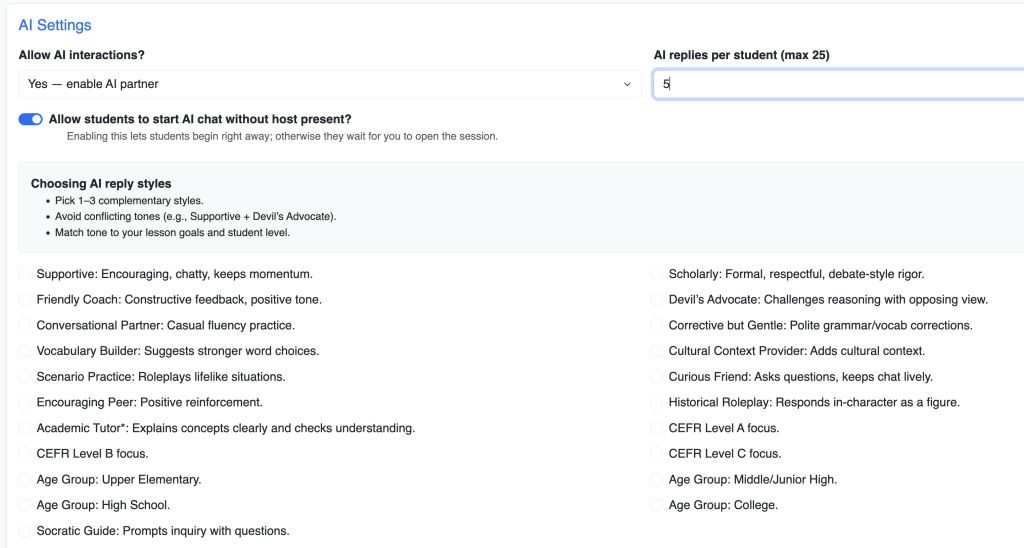
The teacher begins by designing the experience. Instead of sending students into a blank AI space, the teacher sets the context for the chat lesson. That can include the topic, the role the AI should play, the style of interaction, and the kind of responses students should practice. In other words, the teacher is not losing control of the lesson. The teacher is shaping it. The AI becomes part of the instructional design, not a replacement for it.

That design layer matters because it changes the tone of classroom AI use completely. A good AI classroom tool should not start with “Ask anything.” It should start with “Here is the conversation space, the purpose, the boundaries, and the learning goal.” AI Chat does that by grounding the experience in teacher-authored prompts and lesson framing.

Safety and guardrails are where confidence really begins. In a classroom setting, teachers need to know that the AI interaction is not just interesting but manageable. AI Chat is built with that in mind. The interaction is task-based, teacher-directed, and contained inside the app’s lesson structure. That means students are not wandering through a general consumer AI environment. They are participating in a bounded academic conversation designed for class use.

Students do not need “more AI.” They need a clear task, a safe place to respond, and a sense of what the conversation is supposed to accomplish.

Another confidence point is that AI Chat is not just about what students see. It is also about what teachers can supervise. Classroom AI becomes much more usable when teachers know there is visibility into the work. A safe AI lesson is not only about preventing bad outcomes; it is also about preserving teacher awareness. If a tool gives structure without visibility, teachers still hesitate. AI Chat is designed to keep the instructional frame intact so the AI supports the lesson rather than taking it over.

The prompt layer is especially important here. Teachers can shape the AI to behave more like a tutor, conversation partner, role-play partner, or guided practice engine depending on the activity. That means a teacher can create targeted uses for AI instead of generic ones. In one lesson, the AI might support language practice. In another, it might guide historical role-play. In another, it might help students think through an argument or reflect on a reading. The key point is that the teacher defines the academic purpose first.

That structure also helps address one of the biggest concerns around classroom AI: unpredictability. Teachers are much more likely to use AI confidently when they know the task is framed, the expectations are clear, and the AI’s role is intentionally constrained. AI Chat supports that by centering the prompt design and lesson purpose rather than offering unrestricted exploration as the default.

There is also a practical classroom benefit to this kind of design: it reduces the intimidation factor for both students and teachers. Students do not need “more AI.” They need a clear task, a safe place to respond, and a sense of what the conversation is supposed to accomplish. Many teachers feel the same way. AI Chat makes classroom use feel more like a guided lesson and less like opening the door to an unknown system.

This approach promotes confidence without pretending AI needs no supervision. It respects the reality that teachers want innovation, but they also want boundaries. They want students to interact with AI, but not in a way that feels chaotic, untraceable, or disconnected from the lesson. AI Chat works because it treats safety, prompt design, and teacher control as core features, not optional extras.

In short, AI Chat is built to help teachers bring AI into the classroom with more confidence. It combines instructional prompting, structured interaction, and classroom-minded guardrails so teachers can use AI as part of a lesson without feeling like they are surrendering the lesson to the tool.

    Introducing SlideCraft: Collaborative Presentations Without the Formatting Distraction

    One of the most effective ways for students to master new content is to own it. When a student has to synthesize a topic, identify what matters, and teach it back to their peers, the learning sticks.

    However, in a typical classroom, “making a presentation” often turns into a week-long odyssey of font choices, transitions, and image cropping. The actual thinking—the synthesis—gets buried under the formatting.

    That’s why we built SlideCraft. It’s a new tool within Innovation Assessments designed for speed, accountability, and meaningful participation. It’s not a full-featured slide editor; it’s a structured workflow that turns a class’s collective research into a ready-to-present deck in minutes.

    The Problem with “Death by PowerPoint” (and Canva, and Slides…)

    In many EdTech tools, “engagement” is equated with gamification—points, music, and flashy animations. At Innovation, we believe real engagement is cognitive load. We want students focusing on the history, the science, or the literature, not the “rules of the game” or the aesthetic of a slide border.

    SlideCraft is built for a specific, powerful classroom pattern:

    1. The Hook: The teacher introduces a topic.
    2. The Task: Students are assigned specific subtopics or “jigsaw” pieces.
    3. The Build: Students research quickly and build exactly one slide.
    4. The Share: The class presents the completed, unified deck immediately.

    How It Works: Designed for the Live Classroom

    SlideCraft lives in two places: your prep time and your live instruction.

    Teacher Setup (The Prep) In configuration, you build the skeleton of the lesson. You can add up to five starter slides (intro, instructions, or framing) and then define the “prompts” students will receive. These prompts are reusable, meaning you can run the same activity with five different sections without rebuilding the wheel.

    The Live Session (The Action) When class starts, you launch the Live Host from your course playlist. Students join via a link from their login page and are automatically assigned one of your prompts.

    As they work, you can:

    • Monitor incoming drafts in real-time.
    • Set a countdown timer or stop the session manually.
    • Autosave everything: Because this is built for real-school Wi-Fi and interruptions, student work is preserved constantly as they type.

    What Students See: Focus over Frills

    The student interface is intentionally lean. There are no menus for “WordArt” or background gradients. Students see:

    • Their assigned title and specific instructions.
    • A field for concise bullet points.
    • An image upload (optional).
    • A Source URL field: This is critical. By making the source a required part of the “Craft,” we reinforce academic integrity from the first click.

    From “Building” to “Presenting” in One Click

    The moment you stop the build session, the host view transforms into a presentation stage.

    The finished deck is automatically assembled: your intro slides first, followed by the student-generated content. During the presentation, the teacher has access to a Presenter Timer and a Show Sources toggle. This allows you to pause the lesson and discuss source credibility or authority on the fly—turning a student slide into a teachable moment about information literacy.

    Accountability and Scoring

    SlideCraft isn’t just an “activity”—it’s an assessment. Once the presentation is over, the work doesn’t disappear. All student submissions are saved for review. Using the familiar Submissions and Score tools, you can:

    • Evaluate slides using your existing rubrics.
    • Score based on the quality of the bullets and the reliability of the sources.
    • Provide written feedback and release evaluations to students.

    A First Use Case: The French Revolution

    Imagine a lesson on the causes of the French Revolution.

    • Teacher Intro: 3 slides on the monarchy and the Three Estates.
    • The Build: Students are assigned prompts like The Bread Crisis, Enlightenment Ideas, The American Influence, and Louis XVI’s Debt.
    • The Result: Within 15 minutes, you have a 25-slide deck built by the class.

    You aren’t just lecturing; the students are providing the evidence.

    SlideCraft fills the gap between passive slide-viewing and time-consuming independent projects. It’s built for teachers who want their students to be active, collaborative, and accountable—without the “formatting fatigue.”

    If you’re ready to turn your next research burst into a live class product, SlideCraft is ready for you in the Innovation dashboard.

    EduTech from a Teacher-Coder: Engagement Without the Game

    How to create meaningful, real-time engagement with a workflow that’s simple and actually usable in class

    Whether you teach remotely like I do or are working in-person, you know that student engagement in the lesson is a paramount concern. It is important that students not be passive recipients very often or for long periods.

    Gamification enthusiasts and coders who have not taught middle school seem to often believe that the answer is to make studying something more like an XBox adventure. Add music, competition, points and tokens and they will learn without even knowing it!

    But I want my students’ cognitive load carrying the lesson, not the rules of the game or the points they earned or the banter with the other team. To this end, I developed “live session” interactive versions of many of the Innovation apps.

    The workflow goes like this: the instructor starts a host instance of the activity, copies a special participation link and send it to students, who then get a screen for interacting. Live sessions turn the activity into an interactive activity that fosters engagement through inquiry, curiosity, discussion, debate, reinforcement.

    I use the TestApp and the Étude live sessions to debrief after a test or to review for tests. the teacher screen displays the questions one at a time. The teacher host opens the session to responses and closes after the time. Student responses are displayed anonymously for debriefing.

    “Engagement isn’t just activity—it’s thinking.” 

    I use the Grammar app live session in my French classes. I can display the prompt to the screen, open for student responses, they then submit their work and I can display anonymously for debriefing. This is exactly the same as the assignment, just displayed in a different interactive form.

    The Media powerpoint application I use most often for teaching social studies and for my advanced French courses where I am delivering content. This is a very powerful and flexible application that will be discussed in detail in a later post. Suffice it to say for now that the media live sessions have all the tools we need to get brief and extended student replies and reactions, from short answer to multiple-choice and even a selection of emojis!

    One of my students remarked that the live sessions were kind of a boring Kahoot! I laughed and replied that was the intention! No points, music, sound effects, rankings, scores, goofy animations. The focus is on the lesson. If anything is to be entertaining, it’s going to be me!

    EduTech from a Teacher-Coder: Restoring the Teacher’s Line of Sight

    For about a decade, classroom technology quietly broke something important.

    Teachers lost their line of sight into student work.

    I don’t mean theory—I mean the simple ability to know what students are actually doing.

    Some call this “command and control,” but that misses the point.

    What teachers actually need is simple: the ability to know what students are doing, in real time, so they can guide and support them.

    We need the old fashioned line-of-sight supervision and guidance that instructors maintained in effective classrooms in the ages before every student got a ChromeBook with a pile of office productivity software. I knew exactly what my students were doing as I circulated the classroom. I could look over their shoulder and contribute advice to a forming essay. I could redirect students who found something off-task more interesting to do. I could ensure with some reliability that no cheat sheets were being used on tests and that students were doing their own work. I was able to keep the class workflow moving so we didn’t fall behind with delays and procrastination.

    Then came ChromeBooks whose screens we could not see or were easily hidden. With that came office productivity tools designed for mature adults in paying jobs who were motivated for the most part to get their work done. Ironically, tools designed for productive adults often made classrooms less productive.

    There are a number of expensive software on the market now for monitoring student screens. At my last district, we had a product that let us monitor everyone’s tabs. But I really don’t think my own workflow is much improved by surveilling a dozen tiny screencasts.

    I’m retired now and I teach remotely a few hours a day. I need more than ever to know know exactly what my students are doing. It is important to maintain the pace of the lesson and to ensure assessment integrity. This post’s “EduTech from a Teacher-Coder” is the monitors and proctors in all of Innovation’s apps.

    Monitor

    Every application at Innovation comes with a monitor to display in real time how students are progressing on their task. The test monitor shows what question students are on and even has a messaging feature so I can quietly post notifications to students in their test. The writing app monitor displays the current essay for each student, the number of words, their use of any AI licenses. Vocabulary quiz, sorting app, the “KnowWhere” map study, cause and effect study, reading comprehension, cloze app, ordered list, forum, even the AI chat application can display student progress and often their work product. The monitors all hide the student names as an option so that teachers can display the monitor on shared screen or in front of the classroom as a way to remind everyone to keep pace.

    Monitors let teachers see the correct responses for many activities. The monitor returns an important feature of command and control of the classroom: I need to know exactly what they are doing.

    Proctor

    The proctoring feature is extensive throughout all of the activities. Proctor is an after-the-fact kind of analysis and proctors come with AI interpretation and summary features. When did they start the app? How long did they spend on each question? Did they leave the screen? Paste in any text? Try to right-click and use a spellchecker or AI assistant not licensed?

    Common thoughts on giving assessments in remote teaching are that it is not reliable. But if there is a strong AI-assisted proctor running during the assessment and there is an adult supervising in the room, we can be assured of an assessment result as reliable as old fashioned in-person classes.

    Teacher Command and Control Supports Successful Student Outcomes

    When the proper guardrails are in place, guardrails we have always had in teaching, then we can be more assured of delivering the kind of high quality, effective training that leads to student success. A dozen applications at Innovation include monitoring and they all include proctoring.

    For years, we handed students powerful tools…
    and took away the teacher’s ability to see how they were being used.

    That was the mistake and now we’re correcting it.

    A Better Way to Assign Short Student Presentations Across the Curriculum

    When I started teaching in 1991, the highest level of technology in my class was my pocket calculator. Supervision was a matter of circulating the room to make sure students were engaged.

    When technology became part of our schoolrooms, we had to surrender a lot of the supervision that we used to have. Students could now hide behind ChromeBooks or click away quickly when we walk by and easily become off-task and disengaged. The main reason for this was that the first technology solutions were designed for offices, not for classrooms. We thought this was a great idea, since many students would one day in the workforce be using such applications.

    We were wrong about that.

    Software designed for adults, for office workers and designers, is not appropriate for most classroom settings simply because it does not have the guardrails and monitoring that we used to have in pre-EdTech days.

    Yes, we worked around it. We added internet filters, screen monitoring software, and the like. But that is not the same as having direct observation of our students and control over their workflows.

    Many efforts to create truly classroom-friendly EdTech have focused on “gamifying” learning. Developers believed in the old trope that you could trick them into learning if they were having fun. Don’t get me started on that…

    The problem I wanted to address in this post occurred in a remote AP French class I was teaching. The remote platform was Canvas. The assignment was to produce a 2-minute video presentation in French, mostly improvised, to model how the task was set up on the AP exam. The students dutifully uploaded their little videos to Canvas and it was obvious that they were reading prepared scripts and they had either an AI either do the work or correct the work. I knew from class sessions that they were not capable of that level of language proficiency and anyone watching could see they were reading.

    How does one rationalize giving a high stakes grade for that?

    EduTech Solution from a Teacher-Coder

    Presto is an application at the Innovation platform that resolves the issue of students having AI-generated presentations and scripts without real learning or synthesis. While originally devised as an evaluation tool for world language learners, it is extremely effective in content area classes like social studies.

    Students log in and are redirected to the assessment. After setting their camera and mic and starting the camera, the task begins. Only now can they see the prompts. There is a strict timer and an AI-enhanced proctor records their engagement and activity on the page. There is a time limit. Once started, they need to finish or they must be readmitted by the teacher. This prevents viewing the prompts and then starting again after research.

    The proctor provides the supervision we often lack in modern education software. The time limit and the coordination of camera activation with prompt visibility prevent cheating very effectively.

    “AI has made scripted assignments meaningless. Presto measures thinking instead.”

    More importantly, the structure encourages authentic thinking. Students must interpret the prompts and organize their ideas in real time rather than relying on pre-written scripts. Instead of reading polished AI-generated text, they must explain ideas in their own words within a clear time limit.

    For teachers, this makes evaluation more meaningful: the focus shifts from detecting AI assistance to assessing a student’s ability to communicate understanding.

    Students must interpret the prompts and organize their ideas in real time. Instead of reading polished AI-generated text, they explain ideas in their own words within a clear time limit.

    For teachers, this changes the evaluation process completely. Instead of trying to determine whether a script was written by the student or by an AI assistant, we can focus on what actually matters: a student’s ability to communicate understanding.

    And that was the goal all along.