A Walk-Through of AI Chat at Innovation

Classroom AI Conversations with Guardrails, Structure, and Teacher Confidence

One of the questions teachers ask most often about classroom AI is not “Can it chat?” but “Can I trust it enough to use it with students?” That is exactly the problem our AI Chat app was built to solve.

The goal of AI Chat is not to hand students an open-ended chatbot and hope for the best. The goal is to give teachers a way to use AI conversation as an instructional tool inside a structured classroom environment, with clear prompts, strong boundaries, and teacher-facing oversight.

The teacher begins by designing the experience. Instead of sending students into a blank AI space, the teacher sets the context for the chat lesson. That can include the topic, the role the AI should play, the style of interaction, and the kind of responses students should practice. In other words, the teacher is not losing control of the lesson. The teacher is shaping it. The AI becomes part of the instructional design, not a replacement for it.
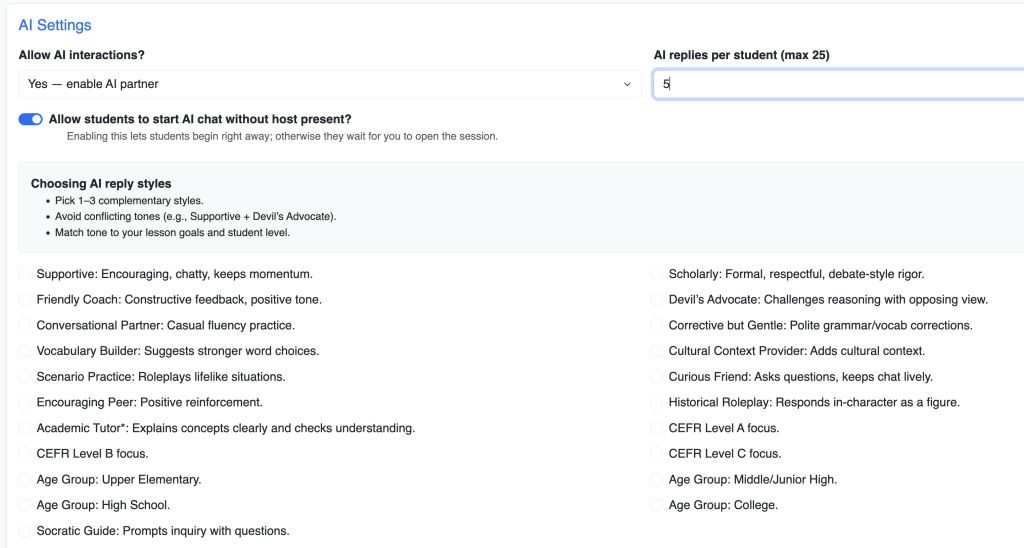
That design layer matters because it changes the tone of classroom AI use completely. A good AI classroom tool should not start with “Ask anything.” It should start with “Here is the conversation space, the purpose, the boundaries, and the learning goal.” AI Chat does that by grounding the experience in teacher-authored prompts and lesson framing.

Safety and guardrails are where confidence really begins. In a classroom setting, teachers need to know that the AI interaction is not just interesting but manageable. AI Chat is built with that in mind. The interaction is task-based, teacher-directed, and contained inside the app’s lesson structure. That means students are not wandering through a general consumer AI environment. They are participating in a bounded academic conversation designed for class use.

Students do not need “more AI.” They need a clear task, a safe place to respond, and a sense of what the conversation is supposed to accomplish.

Another confidence point is that AI Chat is not just about what students see. It is also about what teachers can supervise. Classroom AI becomes much more usable when teachers know there is visibility into the work. A safe AI lesson is not only about preventing bad outcomes; it is also about preserving teacher awareness. If a tool gives structure without visibility, teachers still hesitate. AI Chat is designed to keep the instructional frame intact so the AI supports the lesson rather than taking it over.

The prompt layer is especially important here. Teachers can shape the AI to behave more like a tutor, conversation partner, role-play partner, or guided practice engine depending on the activity. That means a teacher can create targeted uses for AI instead of generic ones. In one lesson, the AI might support language practice. In another, it might guide historical role-play. In another, it might help students think through an argument or reflect on a reading. The key point is that the teacher defines the academic purpose first.

That structure also helps address one of the biggest concerns around classroom AI: unpredictability. Teachers are much more likely to use AI confidently when they know the task is framed, the expectations are clear, and the AI’s role is intentionally constrained. AI Chat supports that by centering the prompt design and lesson purpose rather than offering unrestricted exploration as the default.

There is also a practical classroom benefit to this kind of design: it reduces the intimidation factor for both students and teachers. Students do not need “more AI.” They need a clear task, a safe place to respond, and a sense of what the conversation is supposed to accomplish. Many teachers feel the same way. AI Chat makes classroom use feel more like a guided lesson and less like opening the door to an unknown system.

This approach promotes confidence without pretending AI needs no supervision. It respects the reality that teachers want innovation, but they also want boundaries. They want students to interact with AI, but not in a way that feels chaotic, untraceable, or disconnected from the lesson. AI Chat works because it treats safety, prompt design, and teacher control as core features, not optional extras.

In short, AI Chat is built to help teachers bring AI into the classroom with more confidence. It combines instructional prompting, structured interaction, and classroom-minded guardrails so teachers can use AI as part of a lesson without feeling like they are surrendering the lesson to the tool.
    Convo Application Walkthrough

    One of the most practical tools in Innovation Assessments is Convo, our speaking task app built for teachers who want students to respond to prompts in a more authentic, manageable, and scoreable way.

    At its core, Convo is simple: the teacher creates a conversation task using a sequence of prompt audios, students listen and respond one prompt at a time, and the teacher can later monitor progress, review submissions, and score the work using either simple prompt-by-prompt scoring or a fuller rubric workflow. But what makes the app useful is how much classroom reality it accounts for.

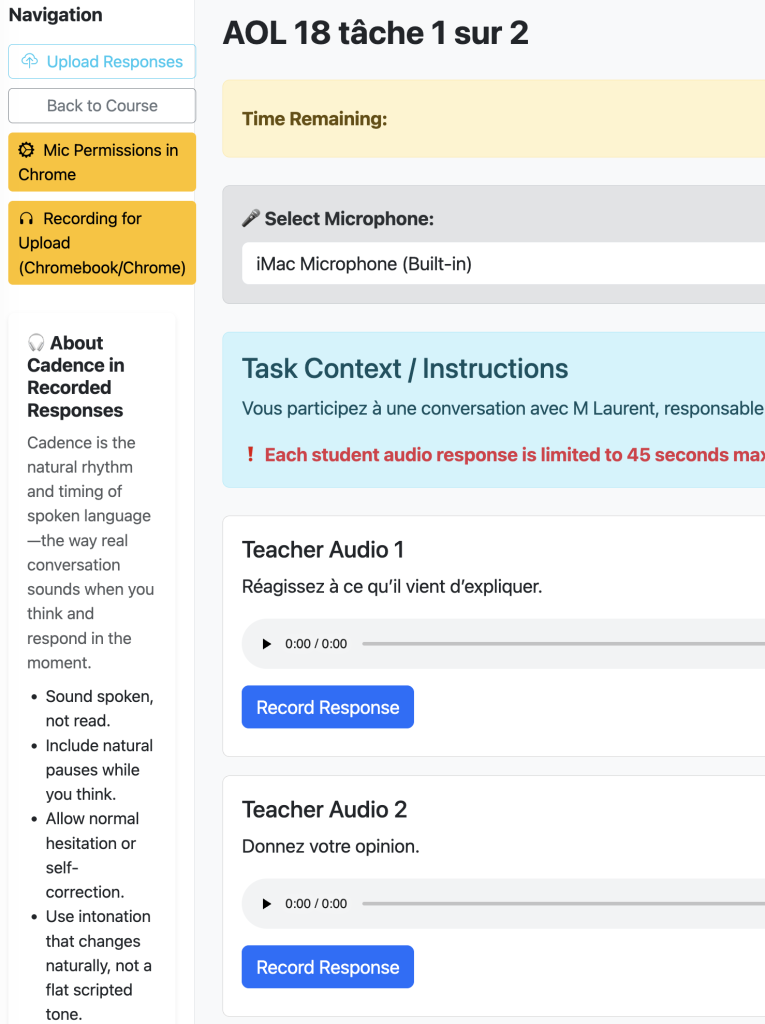
    A teacher begins by configuring the task. The setup is intentionally straightforward: give the task a title, add context or directions, set an overall time limit, and decide whether each prompt response should also have its own time cap. That matters in speaking assessment, because sometimes you want students to think and answer naturally, not rehearse for several minutes. Teachers can also decide how students will complete the task. There is a browser-recording version for direct in-app speaking, and there is also an upload version for cases where device compatibility or student circumstances make recording in-browser less reliable. If a teacher wants tighter control, the task can require in-browser recording so response timing is enforced more strictly.

    The prompt-building process is also flexible. Teachers can upload prompt audio files or record prompt audio directly in the browser while building the task. Each prompt can include a memo or script, which helps keep the assessment organized and teacher-friendly. This makes Convo work well for world languages, oral interpretation, speaking checks, listening-response tasks, and even teacher-created mock interview activities.

    On the student side, the experience is designed to be focused. Students open the task, hear the teacher’s audio prompt, and respond prompt by prompt. The app supports real classroom constraints: access and visibility checks, timing, saved progress, and submission tracking are all built into the workflow. Students who have already submitted are not accidentally allowed to start over unless the teacher readmits them. That matters because speaking tasks can otherwise become messy very quickly if students are unsure whether they are still “in progress” or already finished.

    Another strength of Convo is that it does not pretend every device behaves the same way. The app supports both browser recording and upload-based response collection, which gives teachers a practical fallback path when needed. In real schools, that matters more than elegant theory. A speaking tool only works if students can actually complete the task on the devices they have.

    From the teacher side, monitoring is lightweight and useful. The teacher can open the monitor view and see which students are in progress, how many prompts they have completed, and who may need a readmit. This is helpful during live class use, language lab work, remote learning, or make-up assignments. The monitor is not overloaded; it gives the teacher enough visibility to manage the task without turning into a distraction.

    Scoring is where Convo becomes especially flexible. Some teachers want quick scoring by prompt, especially when they are listening for completion, clarity, or general performance. Others want a more formal evaluation process. Convo supports both. A teacher can score by individual response or switch into rubric-based scoring, depending on how the assessment is designed. That means the same app can support quick formative checks and more structured summative speaking assessments.

    There is also a strong accountability layer behind the scenes. Convo includes proctor-style event logging, submission tracking, and workflow protections that help preserve the integrity of the task. That is particularly useful for graded speaking work, asynchronous assessment, and remote completion settings where teachers want a clearer record of how the task was completed.

    What I like most about Convo is that it is not built around a fantasy classroom. It is built around the real one. Teachers need prompt audio options. Students need a focused workflow. Some devices cooperate; some do not. Some speaking tasks need strict time limits; some need flexibility. Some teachers want quick scoring; some want rubric-driven feedback. Convo makes room for all of that.

    In short, Convo is a speaking assessment tool designed for actual classroom use: easy to configure, realistic for students, adaptable across devices, and strong on both monitoring and scoring. It helps teachers move beyond “just record something and upload it” toward a cleaner, more intentional speaking workflow.

    Introducing SlideCraft: Collaborative Presentations Without the Formatting Distraction

    One of the most effective ways for students to master new content is to own it. When a student has to synthesize a topic, identify what matters, and teach it back to their peers, the learning sticks.

    However, in a typical classroom, “making a presentation” often turns into a week-long odyssey of font choices, transitions, and image cropping. The actual thinking—the synthesis—gets buried under the formatting.

    That’s why we built SlideCraft. It’s a new tool within Innovation Assessments designed for speed, accountability, and meaningful participation. It’s not a full-featured slide editor; it’s a structured workflow that turns a class’s collective research into a ready-to-present deck in minutes.

    The Problem with “Death by PowerPoint” (and Canva, and Slides…)

    In many EdTech tools, “engagement” is equated with gamification—points, music, and flashy animations. At Innovation, we believe real engagement is cognitive load. We want students focusing on the history, the science, or the literature, not the “rules of the game” or the aesthetic of a slide border.

    SlideCraft is built for a specific, powerful classroom pattern:

    1. The Hook: The teacher introduces a topic.
    2. The Task: Students are assigned specific subtopics or “jigsaw” pieces.
    3. The Build: Students research quickly and build exactly one slide.
    4. The Share: The class presents the completed, unified deck immediately.

    How It Works: Designed for the Live Classroom

    SlideCraft lives in two places: your prep time and your live instruction.

    Teacher Setup (The Prep) In configuration, you build the skeleton of the lesson. You can add up to five starter slides (intro, instructions, or framing) and then define the “prompts” students will receive. These prompts are reusable, meaning you can run the same activity with five different sections without rebuilding the wheel.

    The Live Session (The Action) When class starts, you launch the Live Host from your course playlist. Students join via a link from their login page and are automatically assigned one of your prompts.

    As they work, you can:

    • Monitor incoming drafts in real-time.
    • Set a countdown timer or stop the session manually.
    • Autosave everything: Because this is built for real-school Wi-Fi and interruptions, student work is preserved constantly as they type.

    What Students See: Focus over Frills

    The student interface is intentionally lean. There are no menus for “WordArt” or background gradients. Students see:

    • Their assigned title and specific instructions.
    • A field for concise bullet points.
    • An image upload (optional).
    • A Source URL field: This is critical. By making the source a required part of the “Craft,” we reinforce academic integrity from the first click.

    From “Building” to “Presenting” in One Click

    The moment you stop the build session, the host view transforms into a presentation stage.

    The finished deck is automatically assembled: your intro slides first, followed by the student-generated content. During the presentation, the teacher has access to a Presenter Timer and a Show Sources toggle. This allows you to pause the lesson and discuss source credibility or authority on the fly—turning a student slide into a teachable moment about information literacy.

    Accountability and Scoring

    SlideCraft isn’t just an “activity”—it’s an assessment. Once the presentation is over, the work doesn’t disappear. All student submissions are saved for review. Using the familiar Submissions and Score tools, you can:

    • Evaluate slides using your existing rubrics.
    • Score based on the quality of the bullets and the reliability of the sources.
    • Provide written feedback and release evaluations to students.

    A First Use Case: The French Revolution

    Imagine a lesson on the causes of the French Revolution.

    • Teacher Intro: 3 slides on the monarchy and the Three Estates.
    • The Build: Students are assigned prompts like The Bread Crisis, Enlightenment Ideas, The American Influence, and Louis XVI’s Debt.
    • The Result: Within 15 minutes, you have a 25-slide deck built by the class.

    You aren’t just lecturing; the students are providing the evidence.

    SlideCraft fills the gap between passive slide-viewing and time-consuming independent projects. It’s built for teachers who want their students to be active, collaborative, and accountable—without the “formatting fatigue.”

    If you’re ready to turn your next research burst into a live class product, SlideCraft is ready for you in the Innovation dashboard.